Running Argo Workflows locally [ in progress ]
This document describes how to run Argo Workflows locally. This local setup is useful for validating workflow templates. Of course mounted secrets from the cloud k8s will not work here but it ensures the template structure is valid.
Info
For simple argo template validation argo lint can also be used.
Tasks
To set up Argo Workflows locally, we need to provision a local Kubernetes cluster using kind. We'll create an appropriate namespace on that cluster, deploy Argo, and then push our Workflow Template to it. Throughout this process, we'll use kubectl and k9s to interact with and monitor the cluster.
Deploying a local kubernetes cluster
We will deploy a local cluster using kind. Kind will create the containers in local Docker.
We can retrieve local clusters, and create clusters locally again.
Creating the cluster
if ! kind get clusters | grep -q "^kind$"; then
    kind create cluster
fi
Kind also updates your local kubeconfig file (usually located at ~/.kube/config) to add a context and configuration for the new cluster. This is what kubectl uses to interact with the cluster. The kubeconfig entry specifies the API endpoint of the cluster and contains credentials for accessing it. However, this file only contains configuration information and doesn’t store the actual cluster data or state.
This will result in creation of cluster, consisting only of kind-control-place docker container. Importantly, all nods will be ran within that container
Deploying a Local Cluster
We'll deploy a local cluster using kind, which creates containers in local Docker. We can retrieve existing local clusters or create new ones as needed.
Creating the Cluster
if ! kind get clusters | grep -q "^kind$"; then
    kind create cluster
fi
Kind updates your local kubeconfig file (typically at ~/.kube/config) with context and configuration for the new cluster. This file, used by kubectl to interact with the cluster, contains the API endpoint and access credentials. Note that it only stores configuration, not actual cluster data or state.
The resulting cluster consists of a single kind-control-plane Docker container, with all nodes running within this container.
Configuring kubectl
Set kubectl to use the newly created cluster:
CURRENT_CONTEXT=$(kubectl config current-context)
if [ "$CURRENT_CONTEXT" != "kind-kind" ]; then
    kubectl config use-context kind-kind
fi
Confirm the cluster exists:
kubectl cluster-info
Expected output:
Kubernetes control plane is running at https://127.0.0.1:49808
CoreDNS is running at https://127.0.0.1:49808/api/v1/namespaces/kube-system/services/kube-dns:dns/proxy

To further debug and diagnose cluster problems, use 'kubectl cluster-info dump'.
Creating a Namespace
Create a namespace for Argo Workflows within the Kubernetes cluster:
if ! kubectl get namespace argo &>/dev/null; then
    kubectl create namespace argo
fi
kubectl will use the default cluster (set in the previous step).
Deploying Argo Workflows
Install Argo Workflows in the cluster:
kubectl apply -n argo -f https://raw.githubusercontent.com/argoproj/argo-workflows/refs/heads/main/manifests/quick-start-minimal.yaml
This creates Argo resources within the kind cluster.
kubectl get pods -n argo

NAME                                                READY   STATUS    RESTARTS   AGE
argocd-application-controller-0                     1/1     Running   0          65m
argocd-applicationset-controller-5b866bf4f7-mdjkc   1/1     Running   0          65m
argocd-dex-server-7b6987df7-wsrkb                   1/1     Running   0          65m
argocd-notifications-controller-5ddc4fdfb9-8tplt    1/1     Running   0          65m
argocd-redis-ffccd77b9-mhwt5                        1/1     Running   0          65m
argocd-repo-server-55bb7b784-crfwq                  1/1     Running   0          65m
argocd-server-7c746df554-m7d7q                      1/1     Running   0          65m
Submitting a Hello World Workflow
To test your setup, submit a hello world workflow:
argo submit -n argo --watch https://raw.githubusercontent.com/argoproj/argo-workflows/main/examples/hello-world.yaml
Accessing the Argo Workflows UI
Port Forwarding
Expose the Argo server port:
kubectl -n argo port-forward service/argo-server 2746:2746
Accessing the UI
Navigate to https://localhost:2746
Important Notes:
- Use https, not http. Using http will result in a server-side error.
- You'll encounter a TLS error due to the self-signed certificate. You'll need to manually approve this in your browser.
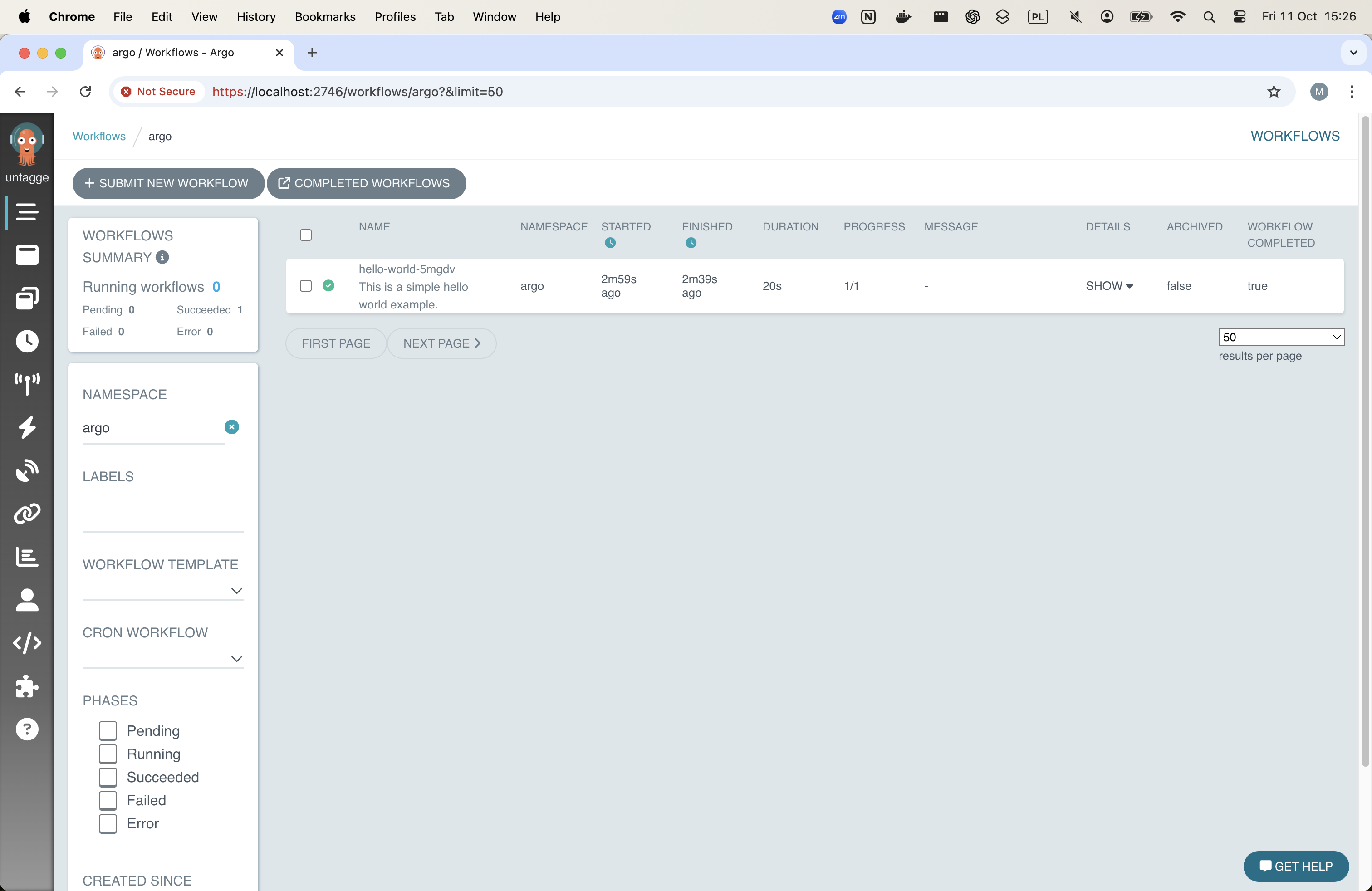
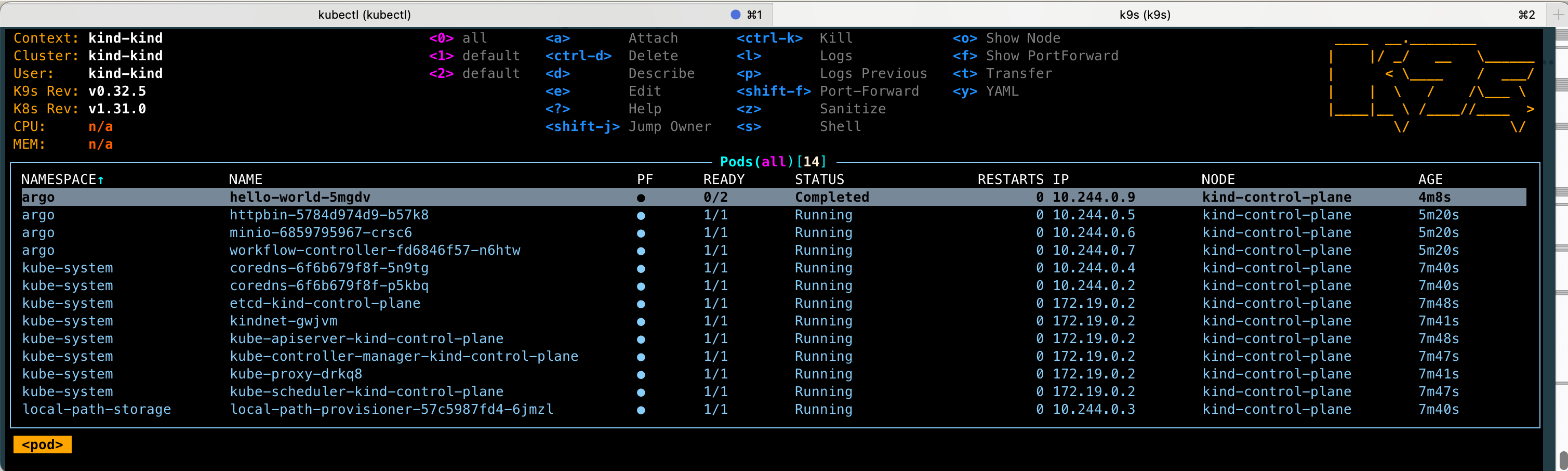
UI Screenshots
Argo Workflows UI:
K9s view:
Listing Workflows
To list workflows in the CLI:
argo list -n argo

NAME                STATUS      AGE   DURATION   PRIORITY   MESSAGE
hello-world-5mgdv   Succeeded   4m    20s        0
Working with Workflows
Listing Workflows
List all workflows:
argo list -n argo
List the latest workflow:
argo get -n argo @latest
Viewing Logs
View logs of the latest workflow:
argo logs -n argo @latest
Submitting a Workflow Template
To submit a workflow template for local execution:
argo submit --name test-run -n argo --from wftmpl/test-run -p run_name=test-run -l submit-from-ui=false --entrypoint __default__